Automatic Captioning in Python.
- System: Ubuntu 18.04
- Python: 3.6
There are many cloud-based speech recognization services available (etc. Google Cloud, IBM Watson, Microsoft Azure, Wit.ai). But in this article, I'm gonna introduce the way how to achieve auto-captioning fully offline step by step.
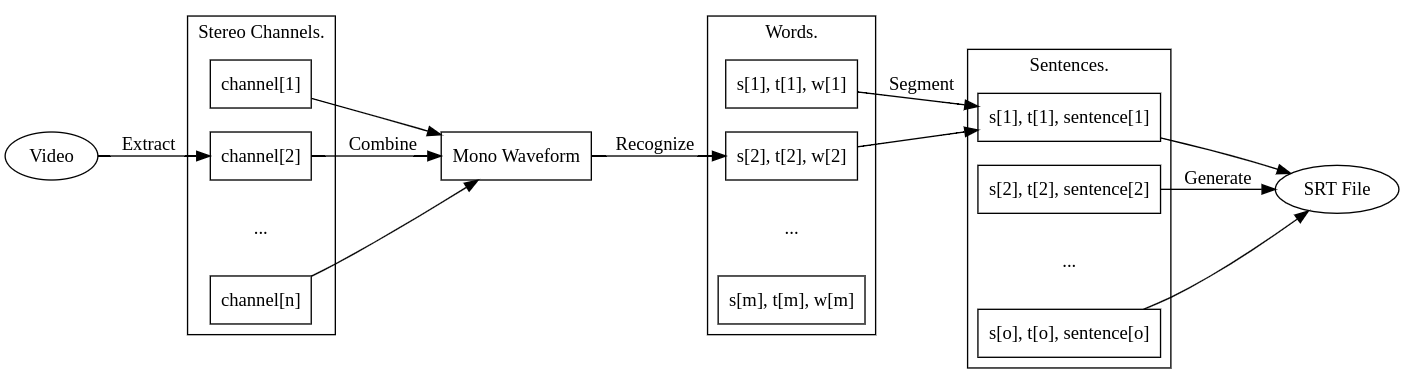
Briefly, this program contains several parts:
- Extracting the audio from the input video.
- Converting from stereo waveforms to single mono waveform.
- Speech recognization based on vosk, extracting words and their positions (start time and end time) from the mono waveform.
- Segment words into sentences based on NNSplit.
Vosk is an offline speech recognition library based on Kaldi. And NNSplit is a library by which we can split words into sentences without punctuations based on a sequence labeling LSTM.
Audio Extracting.
The first step is quite simple, we can import the library moviepy which provides the API to extract audios from videos based on ffmpeg.
Install ffmpeg and moviepy.
sudo apt install ffmpeg
pip3 install moviepy
Extract audio.
from moviepy.editor import VideoFileClip

def extract_audio(video_path, wav_path):
	video = VideoFileClip(video_path)
  video.audio.write_audiofile(wav_path)
Stereo Waveforms Combining.
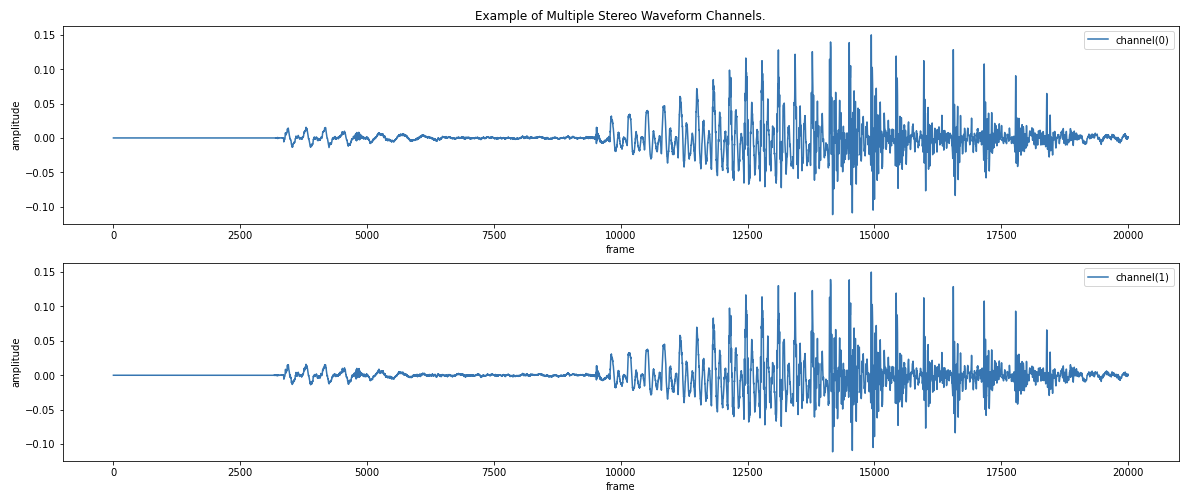
The wav file written by moviepy may contain multiple stereo channels. Now we use pydub to combine these channels to a single mono channel.
Install pydub.
pip3 install pydubCombine stereo channels.
from pydub import AudioSegment

def combine_stereos(wav_path):
    audio = AudioSegment.from_file(wav_path)
    channels = audio.split_to_mono()
    sum(channels).export(wav_path, format="wav")
Speech Recognization.
Vosk is a speech recognization library which supports 9 languages and works offline based on kaldi. By default, it takes small model to work on lightweight devices. To achive higher accuracy, we can download bigger server models from here. We use wave to parse the wav file and read binary frames to feed vosk. Since the speech recognization may take a quite long time, we use tqdm to show a progress bar.
Install [vosk][https://alphacephei.com/vosk/] and tqdm.
pip3 install vosk tqdmRecognize speech.
def recognize_speech(wav_path, lang="en", buffer_size=4000):

  vosk.SetLogLevel(-1)

  wav_file = wave.open(wav_path, "rb")
  recognizer = vosk.KaldiRecognizer(vosk.Model("model/{}".format(lang)),
                                    wav_file.getframerate())
  words = []

  for index in tqdm(range(0, wav_file.getnframes(), buffer_size)):
      frames = wav_file.readframes(buffer_size)

      if recognizer.AcceptWaveform(frames):
          result = json.loads(recognizer.Result())

          if len(result["text"]) > 0:
            for token in result["result"]:
              words.append({
                  "start": token["start"],
                  "end": token["end"],
                  "text": token["word"],
              })

  return words
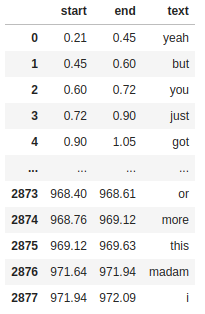
After speech recognization, we can get a sort of words and their positions (start time and end time) in the given, like this:
Sentence Segmentation.
Now the next problem is that we don't have punctuations to split the words into sentences easily. This problem is as known as Sentence boundary disambiguation (SBD). NNSplit is such a library that aims split words into sentences without punctuations based on a sequence labeling LSTM.
Words to Sentences.
yeah but you just got out of prison /
i mean how much of a step up from that /
you don't get out of the booth
Install NNSplit.
pip3 install nnsplitSegment sentences.
def segment_setences(words, lang="en"):

	content = " ".join(map(lambda word: word["text"], words))
  sentences = []

  left = 0

  for tokens2d in tqdm(nnsplit.NNSplit(lang).split([content])):
    for tokens in tokens2d:

      text = "".join(
        map(lambda token: token.text + token.whitespace, tokens)).strip()

      right = min(len(words), left + len(tokens)) - 1

      while right > 0 and not text.endswith(words[right]["text"]):
        right -= 1

      sentences.append({
        "start": words[left]["start"],
        "end": words[right]["end"],
        "text": text
      })

      left = right + 1

  return sentences
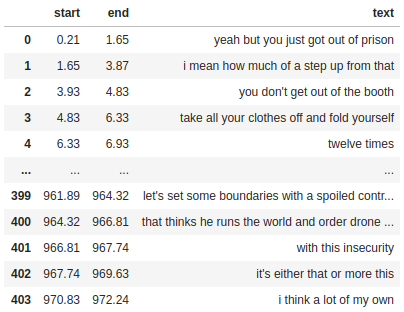
Example result of sentence segmentation:
SRT File Generation.
The final step is quite easy. Now we want to write the result into a format which can detected by video player automatically. SubRip Subtitle Format could be a good chioce.
A .srt file is a pure text file with sequence numbers starting from 1, timestamps and caption texts. The content below shows what a .srt file looks like:
1
00:00:00,210 --> 00:00:01,650
yeah but you just got out of prison

2
00:00:01,650 --> 00:00:03,870
i mean how much of a step up from that

3
00:00:03,930 --> 00:00:04,830
you don't get out of the booth

...
Generate SRT file.
def time2str(x):

  return "{hour:02d}:{minute:02d}:{second:02d},{millisecond}".format(
    hour=int(x) // 3600,
    minute=(int(x) // 60) % 60,
    second=int(x) % 60,
    millisecond=int(x * 1000) % 1000)
def write_srt_file(captions, srt_path):

  with open(srt_path, "w") as srt_file:
    for index, caption in enumerate(captions):
      srt_file.write("{}\n{} --> {}\n{}\n\n".format(
        index + 1, time2str(caption["start"]),
        time2str(caption["end"]), caption["text"]))
Conclusion.
In this article I've introduced a way to implement a fully offline program automatically generating captions from videos. This sample shows the captions generated from my program. And I've published the implementation as a Python package called auto-caption.
References.
- Build Natural Language Expeiences with Wit.ai.
- FFMpeg - A complete, cross-platform solution to record, convert and stream audio and video.
- Fast, robust sentence splitting with bindings for Python, Rust and Javascript.
- Kaldi Speech Recognization Toolkit.
- MoviePy - A python module for movie editing.
- Pydub - Manipulate audio with a simple and easy high level interface.
- Sentence boundary disambiguation.
- Speech to Text with Google Cloud.
- Speech to Text with IBM Watson.
- Speech to Text with Microsoft Azure.
- SubRip Subtitle Format.
- TQDM - A Fast, Extensible Progress Bar for Python and CLI.
- VOSK Speech Recognization API.